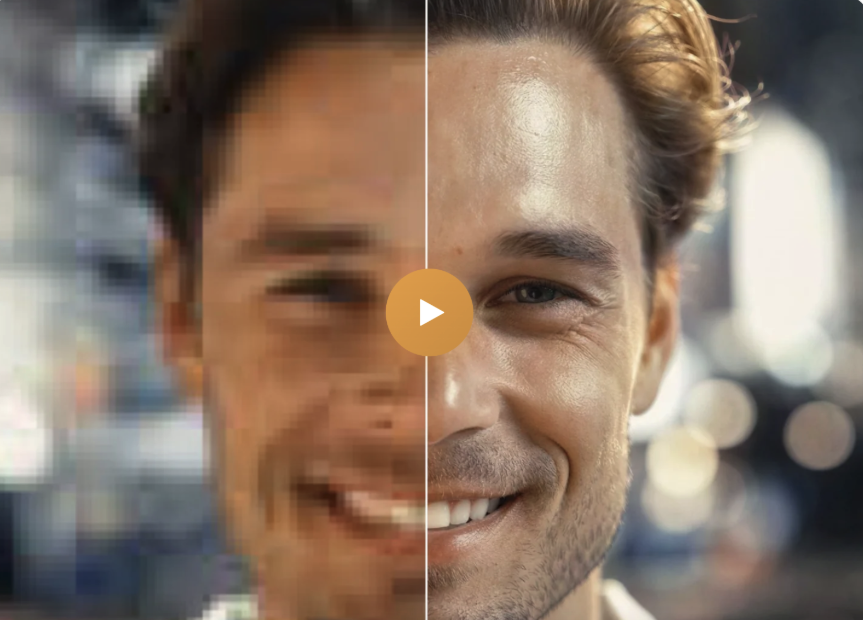
How to Upscale and Enhance Downloaded Videos with AI
You downloaded a video from social media or saved an old clip from years ago. The content is exactly what you wanted—but the quality is not. Blurry frames, visible pixels, and that unmistakable low-resolution look make it hard to watch on modern screens.
This is a common problem. Many online videos are compressed to save bandwidth, older recordings were made at lower resolutions, and social platforms often reduce quality during upload. The good news: AI video upscaling can fix this.
Why Downloaded Videos Often Have Poor Quality
Several factors affect the quality of videos you download:
- Platform compression: Social media sites aggressively compress uploads to reduce server costs
- Original recording quality: Older phones and cameras recorded at 480p or lower
- Multiple re-uploads: Videos shared across platforms lose quality each time
- Bandwidth optimization: Streaming sites serve lower quality to users with slower connections
The result? That tutorial, family memory, or rare footage you saved looks worse than it should.
How AI Video Upscaling Works
Traditional upscaling simply stretches pixels to fill a larger frame. This creates blur and artifacts. AI upscaling is different.
Modern AI models analyze each frame of your video and intelligently generate new details. They use techniques like super-resolution imaging to recognize patterns—faces, textures, edges, text—and reconstruct them at higher resolution. The AI essentially “fills in” what should be there based on training from millions of high-quality videos.
The result is sharper video with actual detail, not just stretched blur.
What You Can Fix
Old Personal Videos
Those 240p or 360p clips from early smartphones or digital cameras. Family moments, travel footage, events—now watchable on a big screen.
Downloaded Social Media Content
Videos from Facebook, Instagram, TikTok, or Twitter often come out heavily compressed. Upscaling restores clarity lost during platform processing.
Educational and Tutorial Videos
Older instructional content where you need to see details clearly—code on screen, small text, technical diagrams.
Archived Footage
Vintage clips, old news footage, or rare recordings that only exist in low resolution. AI can bring new life to historical content.
Tip: AI upscaling works best on videos that are simply low resolution but were originally recorded clearly. Extremely blurry or corrupted footage will improve but cannot be fully restored.
Resolution Options Explained
When upscaling, you typically choose a target resolution:
- 720p HD: Good for web viewing and social media. Reasonable file sizes.
- 1080p Full HD: The standard for most screens. Best balance of quality and storage.
- 2K QHD: Maximum quality for large displays and future-proofing your content.
A 480p video upscaled to 1080p will not match native 1080p footage, but it will look significantly better than the original—especially on larger screens where low resolution is most noticeable.
A Recommended Tool
Cloud-based AI upscalers handle this process without software installation. You can try video upscaler tools that let you upload your video, select a target resolution, and have AI process each frame.
Key features:
- Supports MP4, MOV, and WebM input formats
- Output in widely compatible MP4 H.264
- Videos up to 60 minutes long
- Processing typically takes 1-3 minutes for short clips
- Reduces noise while enhancing detail
The upscaler analyzes each frame individually, generating new details rather than simply stretching existing pixels. This avoids the blur that traditional resizing creates.
Step-by-Step Process
- Download the video you want to enhance using your preferred method
- Open an online video upscaler—no installation needed
- Upload your video file (MP4, MOV, or WebM)
- Select your target resolution (720p, 1080p, or 2K)
- Wait for processing to complete
- Download your enhanced video
Best Practices
Start with the best source available. If the same video exists at multiple quality levels, download the highest quality version before upscaling.
Choose resolution wisely. Upscaling a 240p video directly to 2K may produce artifacts. Consider stepping up gradually or settling for 720p/1080p.
Check file size. Higher resolution means larger files. Make sure you have storage space for the output.
Preview before batch processing. If you have multiple videos to enhance, test with one first to ensure the results meet your expectations.
What to Expect
AI upscaling is not magic—it cannot invent detail that never existed. But it can:
- Sharpen edges and reduce blur
- Make text more readable
- Improve facial clarity
- Reduce compression artifacts and noise
- Make footage watchable on modern high-resolution displays
For most downloaded videos suffering from compression or age, the improvement is immediately noticeable. Those old clips you have been holding onto can finally look good on your TV or monitor.